TL;DR

Turn the school run and nap time into listening time
- Thousands of audiobooks, podcasts and originals
- Listen on your phone, tablet or Echo — also offline
- Cancel anytime
Hotel WiFi can block a baby camera through sign-in pages, device limits, or network isolation, so test your monitor before you travel. A dedicated parent-unit monitor avoids internet entirely; a local-network camera, travel router, or phone hotspot can work when the camera and app support that setup. Keep a tested fallback, place the camera and cords safely, and treat monitoring as a helper rather than a substitute for adult care.
At 3 a.m., a hotel WiFi sign-in page is a poor place to discover that your baby camera needs the internet. Your room may have a login screen, a network that blocks devices from talking to each other, or WiFi that drops when your phone leaves the room. A quiet, sleeping baby and a blinking connection light can make for a long night.
You can avoid much of that stress by choosing a setup that works without hotel WiFi, then testing it before you pack. This guide explains the differences between direct-connect monitors, local networks, travel routers, and phone hotspots. You’ll also get a practical setup routine, safety checks, and fallback options for when a hotel network has other plans.
A direct-connect monitor can work without hotel WiFi; test its range through a closed door before travel.
A local-network camera works offline only if both its camera and app support local-only viewing.
A travel router may share hotel internet, but sign-in pages and network restrictions can still block the connection.
Test a phone hotspot with the camera and viewing device running together, and check cellular reception, data, and power.
Pack a tested fallback, place the camera and cords safely, and keep monitoring separate from safe sleep and adult care.
Hotel Room Baby Monitor Setup WiFi Workarounds That Work
Hotel WiFi can block a camera through sign-in pages, device limits, or network isolation. Test your setup before travel and keep a reliable fallback.
Choose a connection that fits
Each option has different limits; confirm what your camera and app support.
Skip hotel WiFi
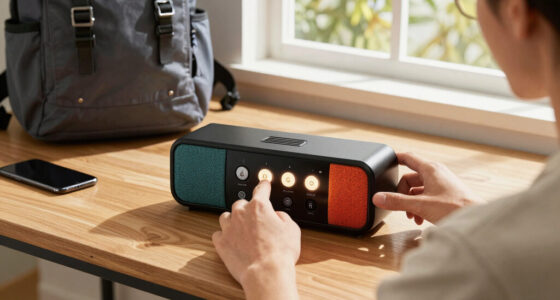
A dedicated parent unit can connect directly to its camera. Test audio, video, and range through a closed door.
Check offline viewing
The camera and app must both support local-only viewing. Joining the same WiFi alone does not guarantee a feed.
Useful, with limits
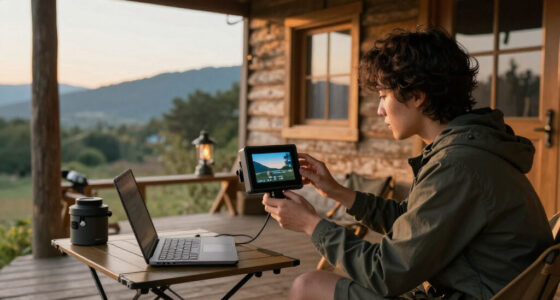
It can create a private network, but hotel sign-in pages, device limits, and policies may still block the connection.
Test the full chain
Check reception, data, power, and whether the camera connects while the phone keeps the feed available.
Prepare before you pack
Use the exact arrangement you plan to rely on.
Try the direct connection, local network, router, or hotspot you plan to use.
Bring the camera, parent unit or phone, adapters, cables, and router if needed.
Check video, audio, night vision, alerts, and connection stability before relying on it.
Set up the room safely
Place the camera securely with a clear view of the sleep space.
- Keep the camera out of the baby’s reach.
- Avoid unstable furniture and hazardous cord placement.
- Use a unique network password and keep apps and firmware updated.
- Keep a direct-connect or audio fallback available.
Start with a monitor that works when the WiFi doesn’t
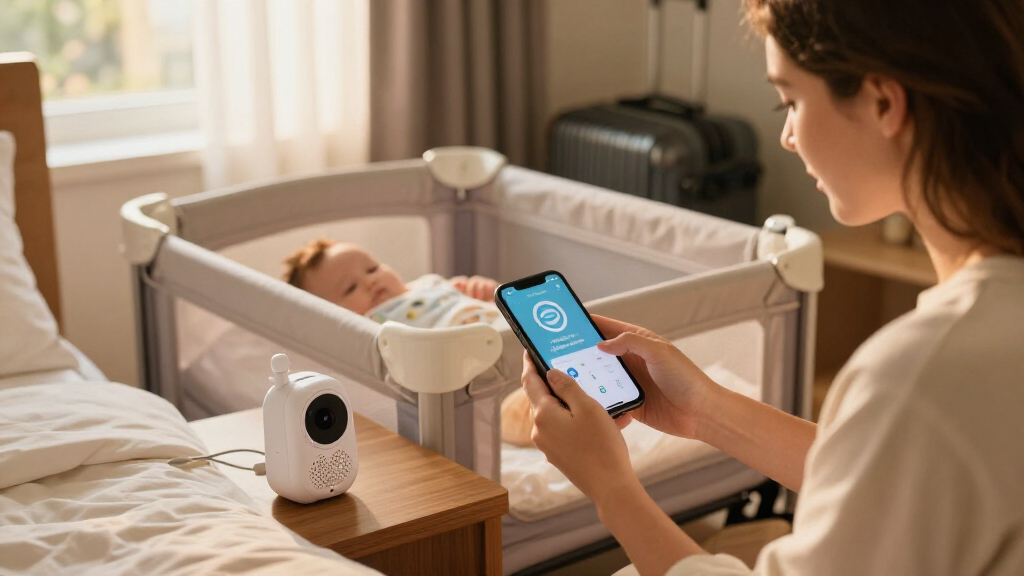
A Hotel Room Baby Monitor Setup is most reliable when the camera can send video straight to its parent unit without internet. A dedicated monitor pairs its camera and handheld screen directly, so a hotel sign-in page, a weak cellular signal, or a hotel router’s device rules may not matter. You still need to check its range, battery life, power needs, and performance through the walls of your room.
That direct link can feel refreshingly simple: plug in the camera, turn on the parent unit, and listen for the soft rustle of a sleeping baby. But “no WiFi needed” does not mean “no testing needed.” Radio signals can weaken across walls, and a monitor that works across your living room may behave differently in a hotel with concrete or metal construction.
For example, if your baby sleeps in a separate bedroom and you plan to sit by the door, test the parent unit from the farthest spot where you expect to use it. Check both audio and video, then repeat with the door closed. If the signal crackles or freezes, move the parent unit closer or choose a different fallback before bedtime.
Check the age suitability and placement instructions for any child product you bring, and look up the model in the CPSC recall database before travel. A monitor helps you hear or see your baby, but it does not replace safe sleep practices or an adult checking on them. That distinction matters even more when the hotel’s layout puts a closed door between you and the crib.
Popular right now

Ninja Flip Toaster Oven & Air Fryer, 8-in-1, Stainless Steel, SP151

De'Longhi Rivelia Fully Automatic Espresso Machine with Milk Frother, White

Dreame L40 Ultra Gen 2 Robot Vacuum and Mop with 25,000 Pa Suction
As an affiliate, we earn on qualifying purchases.
Use a local camera setup only if it works offline
A local-network camera shows video without internet only when the camera and its app both support local-only viewing. A camera and phone can join the same private WiFi network and still fail to connect if the app relies on a cloud service for login, video, or alerts. Confirm offline viewing in the camera’s instructions, then test it with your home internet disconnected.
Think of a local network as a small private hallway for your devices: your phone and camera can pass a video feed along it even when there is no open road to the internet. A travel router can create that hallway. This can make it a useful hotel room baby monitor option, but only if your particular camera app is built to use it.
Try this at home before you leave: set up the camera on the router’s network, turn off the router’s internet connection or disconnect its upstream cable, and open the camera feed on your phone. Test sound, night vision, and alerts. If the feed disappears as soon as the internet goes away, you have learned that the camera depends on a cloud connection and need a different plan.
There is a tradeoff: local viewing may give you video on the same network but no remote alerts when you leave that network. That may be fine while you are across the hotel room; it is not the same as being able to watch from a restaurant downstairs. Decide what you actually need before choosing the setup, and keep a direct-connect or audio fallback if the app’s behavior is unclear.
Know what a travel router can—and can’t—fix
A travel router can create a private WiFi network for your phone and baby camera, and some models can share a hotel connection after you complete its sign-in page. It cannot guarantee that a hotel network will allow the camera through. Captive portals, device limits, network isolation, and hotel policies can all get in the way.
At home, the router is usually the quiet middleman: your devices join it, and it connects onward to the internet. In a hotel, some routers can connect to the property’s WiFi and share that connection with your devices. Some can help you handle a browser login, but the steps vary by model and the hotel may still restrict what the router can do.
Set the router up before the trip. Update its firmware, learn how to open its setup page, and rehearse the hotel connection flow using a network that requires a sign-in if you can. Pack its power adapter and check whether your camera requires 2.4 GHz WiFi; some cameras will not join a network available only on another band. Hotel features and router firmware change, so treat marketing claims as something to verify, not a promise.
Picture arriving late with a tired baby while the router’s setup screen asks for a password you never wrote down. A note in your travel bag with the router login, your camera’s WiFi requirements, and the setup steps can save a lot of fumbling. Use a unique network password and avoid exposing the router or camera’s administration page to the public internet.
Try a phone hotspot only after a full test
A phone hotspot may give a WiFi camera internet access, but it can add new points of failure: limited cellular reception, data use, battery drain, and trouble using the same phone to view the feed. The camera must be able to join the hotspot, and the hotspot must stay active for as long as you need it.
That can be a workable arrangement in a room with strong cellular service and a second phone or parent unit for viewing. It is less comfortable when your only phone has to host the network, run the camera app, and stay plugged into a wall across the room. Some phones also behave differently when you lock the screen or switch apps, so do not assume the hotspot will quietly run all night.
Test the full chain at home: turn on the hotspot, connect the camera, open the live feed, lock the screen, and leave it running for the length of a nap. Then check whether alerts arrive and whether the phone heats up or drops the connection. If you use cellular data, check your plan before streaming; a live video feed can use more data than occasional short checks.
For instance, if you are staying somewhere with one bar of reception, a hotspot may connect but deliver choppy video just when you need reassurance. A direct-connect monitor does not depend on that cellular signal. Hotspot workarounds that look easy on a product page still need a real test with your own phone, camera, and app.
Run this five-step check before you rely on the setup
To prepare a hotel room baby monitor, test the exact connection you plan to use, pack every power item, place the camera safely, and confirm the feed before settling in. A short rehearsal at home catches account prompts and connection problems while you still have time to change plans. Use this order:
- Choose the setup. Decide whether you will use a direct-connect parent unit, a local network, a travel router, or a hotspot. Write down what the camera needs for setup, login, live viewing, and alerts.
- Rehearse the connection. Use the same router or phone hotspot you will travel with. If you expect to rely on local viewing, disconnect internet and check that the video still works.
- Pack the full kit. Bring the camera, parent unit or viewing phone, router if needed, chargers, adapters, and any required cables. Check plug shape and voltage for your destination.
- Place the camera securely. Follow the manufacturer’s placement instructions, aim for a clear view of the sleep space, and keep the camera and cords well out of reach. Avoid unstable furniture and any cord route that could create a hazard.
- Check before you settle in. Confirm audio, video, night vision, alerts, and connection stability from where you will sit or sleep. Repeat with the door closed if that matches your setup.
Imagine arriving at bedtime, plugging in a camera, and learning that the app requires you to log in again. You can prevent that particular surprise by checking account access and app updates at home. Keep the fallback ready too: a direct-connect monitor, audio-only monitoring if appropriate, or an adult close enough to hear and check on the baby.
Choose your fallback before the room gets quiet
Your fallback is the plan that still lets you care for your baby if the main camera will not connect. A direct-connect monitor is a strong backup for a cloud camera; a familiar audio monitor may also suit your needs. If neither is available, arrange the sleep space so an adult can hear and check on the baby rather than depending on a broken app.
It helps to compare what each option actually gives you. Video can show you whether a baby has stirred, while audio can alert you to cries; neither tells you everything about your child’s wellbeing. A parent unit may work without internet, while a cloud camera may need both WiFi and a working account. The right choice depends on your room, gear, and what you can test.
| Setup | Needs hotel WiFi? | Common snag | Best preparation |
|---|---|---|---|
| Direct-connect monitor | No | Range or battery limits | Test through a closed door |
| Local-network camera | Not always | App may require cloud access | Test with internet disconnected |
| Travel router | Only for shared internet | Sign-in pages or hotel restrictions | Practice setup at home |
| Phone hotspot | No hotel WiFi, but may use cellular data | Weak reception or phone limitations | Test camera, viewing, and power together |
A table cannot tell you which plan will work in a specific hotel. If you arrive and the network blocks your camera, use the fallback you already tested instead of spending an hour trying random settings. Never treat a monitor as a substitute for safe sleep practices or adult supervision.
Protect the camera and keep cords away from the sleep space
Keep the camera connection private, choose a unique password, and place the device and cords safely outside your baby’s reach. A hotel’s shared WiFi is meant for many guests, so a camera that depends on an unsecured public connection deserves extra caution. Use a private network when possible, keep the app and firmware updated, and turn off remote access if you do not need it.
Security and physical placement are separate checks. A strong password does not make an unstable camera stand safe, and a clear camera view does not protect your login. In a small room, you might be tempted to perch the camera on a lamp table right beside the crib. Instead, follow the manufacturer’s placement guidance and keep the camera, charger, and cables away from the sleep space and out of reach.
Before bedtime, look at the whole cable path. A cord dangling from a dresser can be easy to miss in dim light, especially when you are carrying a sleepy baby. Route cables so they do not cross walkways or hang near the sleep area; use a secure surface and avoid stacking gear where a bump could send it tumbling.
Then check that the feed is visible and that the camera is not pointed at more of the room than you need. If your app offers account security controls, use them, and do not share your login casually. Those small steps help keep a practical tool from becoming a privacy or placement problem.
Frequently Asked Questions
Can I use a baby monitor without hotel WiFi?
Yes. A direct-connect monitor with a parent unit does not need hotel WiFi. A phone-and-camera setup may also work on a private local network if both the camera and app support local-only viewing.
Will a WiFi baby camera work on hotel WiFi?
Sometimes, but hotel sign-in pages, device limits, and network isolation can block it. Test the camera and app at home, and keep a backup that does not depend on the hotel network.
Can a travel router get around a hotel sign-in page?
Some travel routers can share a hotel connection after you complete its sign-in page. Success depends on the router, the hotel network, and any device restrictions, so practice the setup before your trip.
Can I use my phone hotspot for a baby camera?
Often, if the camera can join the hotspot and your phone maintains the connection. Check cellular reception, data use, and whether the same phone can host the hotspot while you view the feed.
Do I need internet to watch a baby camera on my phone?
Not always. Some camera and app combinations support local viewing on a private WiFi network; cloud-dependent models generally need internet for live video or account access. Test with internet disconnected to find out which kind you have.
What should I do if the hotel blocks the camera?
Switch to a tested direct-connect monitor or another local setup. Do not assume a workaround will defeat the hotel’s network restrictions, and keep an adult able to hear and check on the baby.
Conclusion
Choose the setup you can test end to end before you leave: direct-connect if you want to skip hotel WiFi, or a local network or hotspot if your camera truly supports it. Pack a fallback and confirm the feed, placement, and power before bedtime.
When the hotel room goes quiet, your plan should feel as steady as a night-light: simple, familiar, and ready when you need it.