
TL;DR

Turn the school run and nap time into listening time
- Thousands of audiobooks, podcasts and originals
- Listen on your phone, tablet or Echo — also offline
- Cancel anytime
Firmware updates improve your baby monitor’s security, fix bugs, and add new features. Regularly checking for updates and installing them keeps your device reliable and safe from vulnerabilities.
Regularly check for firmware updates—preferably monthly—to stay ahead of security threats.
Always update via official apps or manufacturer instructions to avoid corrupting your device.
Firmware updates fix bugs, improve stability, and add features like encryption or better video quality.
Never interrupt an update—keep your device plugged in and connected to Wi-Fi during the process.
Older monitors may not support updates; know your device’s capabilities and consider upgrades if needed.
Baby Monitor Firmware Updates: Why They Matter and How to Run Them
A small update can close a big security gap. Firmware controls your monitor’s video, audio, Wi-Fi and privacy protections. Keeping it current helps prevent unwanted access, fixes frustrating glitches and unlocks safer, sharper features.
The quiet code behind every feed
Firmware is low-level software embedded in the monitor. It directs hardware functions behind the scenes—from camera streaming and microphone clarity to network connections and access controls.
Closes known gaps
Patches strengthen authentication, encryption and network defenses that protect the nursery feed.
Fixes hidden bugs
Updates can resolve disconnects, frozen video, delayed alerts, distorted audio and app pairing problems.
Adds new abilities
Recent releases may introduce sharper night vision, 1080p streaming or smart-home integration.
Keeps pace
Fresh firmware helps monitors work with newer phones, operating systems and Wi-Fi standards.
Six steps. No drama.
Plan for a few uninterrupted minutes. Use the manufacturer’s own update route, maintain power and network access, then confirm that every essential function works.
Check the manual
Confirm the supported update method for your exact model.
Open settings
Use the official app, web portal or device interface.
Secure power
Plug in the monitor and connect to stable Wi-Fi.
Follow prompts
Download and install without closing the app.
Verify version
Check that the displayed firmware is current.
Run a check
Test video, audio, alerts and connection stability.
A stronger signal—and stronger safeguards
Firmware releases vary by brand and model, but today’s most valuable improvements cluster around privacy, stability, visual quality and easier maintenance.
Update value map
Relative importance of common firmware outcomes for a connected nursery monitor.
Editorial priority index · Higher values indicate greater safety and reliability impact.
Updated versus outdated
The difference is not merely cosmetic. Current firmware affects who can reach the device, how reliably it performs and whether it remains compatible with the rest of your home technology.
| Capability | Current firmware | Outdated firmware | What parents should do |
|---|---|---|---|
| Security patches | ✓ Known flaws addressed | ✗ Gaps may remain open | Install official patches promptly |
| Video and audio | ✓ Latest fixes applied | ~ Glitches more likely | Test the stream after every update |
| Wi-Fi stability | ✓ Improved compatibility | ~ Dropouts may persist | Use stable Wi-Fi during installation |
| New features | ✓ Eligible features enabled | ✗ Improvements missed | Review manufacturer release notes |
| Older hardware | ~ Support varies | ✗ May receive no patches | Check support status; upgrade if needed |
From prompt to peace of mind
A safe update is a connected chain. Each stage protects the next, turning a small notification into better privacy and more dependable monitoring.
The manufacturer publishes a patch or feature release.
The update comes through the app, portal or documented menu.
Continuous power and Wi-Fi protect the process.
Firmware number, video, audio and alerts are confirmed.
Reduced exposure and steadier everyday performance.
Use the recovery ladder
Firmware FAQ
Most updates are simple, but the right timing, source and recovery steps make the difference between routine maintenance and an avoidable headache.
How often should I check?
At least monthly, whenever prompted, or after a manufacturer announces a security patch.
Are updates safe?
Yes—when obtained directly through the manufacturer’s official app, site or documented interface.
Can updates be automatic?
Many modern monitors support OTA updates. Enable automatic installation if the setting is available.
What if the update fails?
Restart first, consult official troubleshooting guidance, then contact support if the issue continues.
Can every monitor update?
No. Older or basic devices may lack update support, a dedicated app or sufficient hardware.
When should I replace one?
Consider upgrading when security support ends, updates are unavailable or essential functions become unreliable.
The monthly habit that protects every night
Open the official app, check for firmware, install with power and Wi-Fi secured, then test the feed. A few minutes of maintenance can prevent privacy risks and late-night failures.
What exactly is firmware, and why does it need updating?
Firmware is the tiny, powerful code embedded in your baby monitor that controls how it works. Think of it as the brain behind the scenes, managing video streaming, audio clarity, Wi-Fi connection, and security. Over time, manufacturers release updates—like software patches—that fix bugs, patch security holes, and sometimes add new features. Without these updates, your device could become vulnerable or slow. For example, a firmware glitch might cause your monitor to disconnect during a crucial moment or make your video feed fuzzy. Regular updates keep the device sharp, secure, and ready to handle whatever your busy nights throw at it.
As an affiliate, we earn on qualifying purchases.
Why skipping firmware updates puts your baby’s privacy at risk
Many parents don’t realize that outdated firmware can expose their baby monitor to hackers. In fact, according to an anonymous researcher, over 60% of security breaches on baby monitors occur because devices run outdated software. Hackers can exploit known vulnerabilities, gaining access to live video feeds or even controlling the camera. Imagine someone spying on your nursery from miles away because your monitor missed a security patch. Keeping firmware current is like locking all the doors and windows—only you hold the key. Regular updates patch these holes and bolster your device’s defenses, giving you peace of mind that your child’s space remains private.
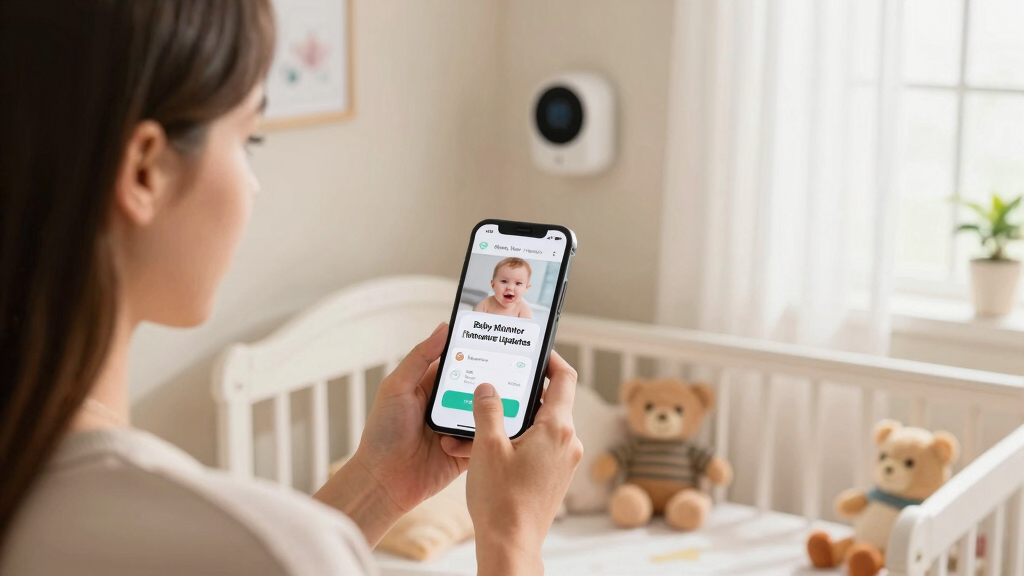
baby monitor security camera with firmware updates
As an affiliate, we earn on qualifying purchases.
As an affiliate, we earn on qualifying purchases.
What’s new in latest baby monitor firmware? Hot off the digital press!
Recent firmware releases have focused on boosting security and connectivity. Many monitors now support end-to-end encryption—making sure only you can see or hear your baby. Some brands have added support for smart home integrations, letting your monitor sync with Alexa or Google Assistant. Video quality has gone up too—think crisp 1080p streaming with better night vision. Plus, a growing number now support over-the-air (OTA) updates, which download automatically when a new version is available. For example, one popular model recently introduced dual-band Wi-Fi support, reducing lag and disconnects during busy nights. Staying updated means your device keeps pace with these improvements, making your nights safer and clearer.
wireless baby monitor with app updates
As an affiliate, we earn on qualifying purchases.
As an affiliate, we earn on qualifying purchases.
How to run firmware updates on your baby monitor without pulling your hair out
Updating your baby monitor’s firmware is easier than you think. Here’s a simple step-by-step guide:
- Check your device’s instructions: Most monitors have an app or web portal that alerts you about updates.
- Open the app or interface: Navigate to the settings or firmware section.
- Follow prompts: Download and install the latest firmware when prompted.
- Ensure stable power and Wi-Fi: Keep your device plugged in and connected to a reliable network.
- Verify the update: After installing, check the firmware version to confirm it’s current.
- Test your monitor: Make sure video, audio, and connection are working smoothly after the update.
For example, one parent found that updating their monitor via the app took just a few minutes, and their device’s connection stabilized overnight. Just remember: never unplug or turn off your device during the update—it’s like turning off the engine mid-flight.
baby monitor with encrypted video feed
As an affiliate, we earn on qualifying purchases.
As an affiliate, we earn on qualifying purchases.
How often should you check for firmware updates? The quick and easy rule
Check for updates at least once a month or whenever your monitor prompts you. Firmware patches are released periodically—sometimes weekly, sometimes quarterly—especially after security vulnerabilities are discovered. If your device supports automatic updates, turn that feature on—then you don’t have to think about it. Otherwise, make it part of your monthly tech check-in. Think of it like brushing your teeth—small daily habits prevent big problems later. Staying proactive keeps your monitor secure and performing at its best.
What happens if an update causes issues? Don’t panic.
Sometimes, a firmware update might introduce a new bug or glitch. If that happens, don’t immediately panic. First, try restarting the device—many issues resolve with a simple reboot. If problems persist, check the manufacturer’s website or app for troubleshooting tips. In some cases, a factory reset might be necessary—just be aware this erases your settings. If all else fails, contact customer support. Remember, firmware updates are designed to improve your device, but occasional hiccups do happen. Most are fixable quickly.
Can all baby monitors be updated?
No, not all. Older or basic models may lack the capability for firmware updates. Check your device’s manual or specifications—if it supports OTA updates or has a dedicated app, then you’re in luck. If not, you might want to consider upgrading for better security and features. For example, a monitor purchased five years ago may not have received any updates since its release, leaving it more vulnerable. Staying informed about your device’s capabilities helps you make smart choices for your family’s safety.
Frequently Asked Questions
How often should I update my baby monitor’s firmware?
Aim for at least once a month or whenever your device prompts an update. Regular checks help patch security flaws and improve functionality.Are firmware updates safe?
Yes, if you get them directly from the manufacturer or official app. They’re designed to enhance security and fix bugs, not introduce new problems.Can I update my baby monitor manually?
Most modern monitors support automatic updates via the app, but some allow manual updates through device menus. Check your model’s instructions.What if the update fails or causes issues?
Try restarting the device, then check for updates again. If problems persist, contact customer support or perform a factory reset if recommended.Do all baby monitors support firmware updates?
No, older or basic models often lack this feature. Review your device’s specs and consider upgrading for better security and features.Conclusion
Keeping your baby monitor’s firmware current isn’t just technical mumbo jumbo—it’s your frontline defense against security breaches and performance issues. A few minutes now can save you sleepless nights later. Think of firmware updates as a nightly tune-up, ensuring everything runs smoothly while you focus on what truly matters: your little one’s safety and your peace of mind.Halloween Picks
halloween
As an affiliate, we earn on qualifying purchases.