
TL;DR

Turn the school run and nap time into listening time
- Thousands of audiobooks, podcasts and originals
- Listen on your phone, tablet or Echo — also offline
- Cancel anytime
Troubleshooting smart bassinet app pairing is often about checking Bluetooth and Wi-Fi, updating firmware, and following simple reset steps. Staying patient and methodical makes the process smooth and stress-free.
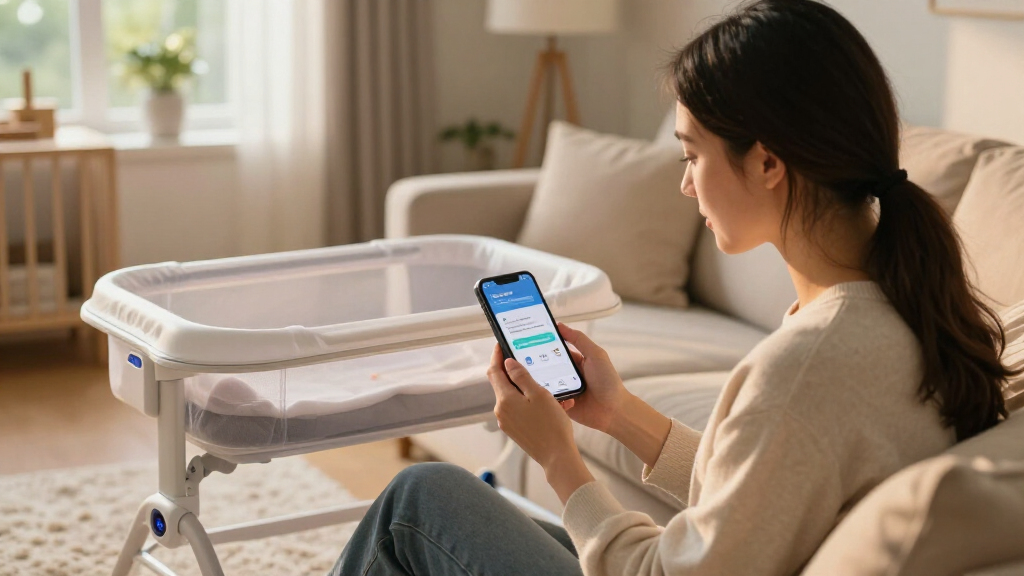
Imagine this: it’s 3 a.m., and your smart bassinet’s app refuses to connect. Your baby’s safety depends on that connection, but frustration bubbles up instead. If you’ve faced this, you’re not alone. Many parents hit a snag with pairing, but most problems boil down to a few common causes. This guide walks you through calming, practical steps to get everything working smoothly again.
Understanding how Bluetooth and Wi-Fi work together in your bassinet can turn a headache into a manageable fix. Whether it’s a simple restart or a firmware update, knowing what to check makes all the difference. Let’s explore how to troubleshoot these issues without losing your cool.
Always start by checking Bluetooth and Wi-Fi connections—these are the backbone of pairing.
Keep your device’s firmware and app updated to fix bugs and improve stability.
Reset your devices systematically—restart, re-pair, and reconfigure—to clear lingering glitches.
Use the 2.4 GHz Wi-Fi band when possible for more reliable remote access.
If problems persist, consult manufacturer support or check for recalls—your baby’s safety depends on it.
Smart Bassinet App Pairing Problems
At 3 a.m., a failed connection can feel like an emergency. Most pairing problems are far less dramatic: Bluetooth, Wi-Fi, firmware, range, or an old connection simply needs attention. Work through one layer at a time.
Restart. Re-pair. Reconfigure. Change only one thing at a time.
One app, two different connections
Think of Bluetooth as the handshake and Wi-Fi as the ongoing conversation. A successful Bluetooth pairing does not guarantee that remote controls, alerts, or sleep data will work until Wi-Fi setup also completes.
The handshake
Finds the bassinet nearby and begins setup. Keep the phone close, enable Bluetooth permissions, and confirm the bassinet’s pairing light is blinking.
The conversation
Carries remote commands, notifications, and monitoring data. The phone and bassinet may need the same network during initial configuration.
The shared language
Updates repair bugs, improve stability, and keep the bassinet compatible with newer app and phone operating-system versions.
A clean re-pair in five moves
Follow the order. It clears stale connections before introducing new network details, making it easier to identify exactly where the process stops.
Refresh Bluetooth
Turn Bluetooth off, wait a few seconds, then switch it back on. Confirm the app has Bluetooth permission.
Reset pairing mode
Use the manufacturer’s reset method—often a five-second button hold—until the pairing indicator appears.
Pair at close range
Open the app and follow its prompts with the phone beside the bassinet, away from walls and large appliances.
Restart if blocked
If discovery fails, restart both the phone and bassinet. Reopen the app and begin a fresh pairing attempt.
Configure Wi-Fi
Select the correct network, re-enter its password carefully, and prefer 2.4 GHz where the model requires it.
What the failure is telling you
The wording in the app matters. “Device not found” points toward discovery; a disconnect after pairing points toward Wi-Fi, power, interference, or software stability.
| Symptom | Likely cause | Best first check | Status |
|---|---|---|---|
| Device not found | Bluetooth off, no pairing mode, or excessive distance | Enable Bluetooth and move the phone closer | ✓ Usually quick |
| Pairs, then fails | Wrong Wi-Fi band, password, or network mismatch | Retry on the same 2.4 GHz network | ~ Check network |
| Keeps disconnecting | Weak signal, congestion, low power, or interference | Restart router and improve placement | ~ Test stability |
| App crashes or freezes | Outdated app, phone OS, or incompatible device | Update software and confirm requirements | ✓ Update first |
| Never connects after resets | Firmware defect or hardware fault | Stop repeated resets and contact support | ✗ Escalate |
Choose reach over raw speed
Many bassinets prefer 2.4 GHz because it travels farther through walls. Newer dual-band models may support 5 GHz, but compatibility must be confirmed in the manual or manufacturer app.
2.4 GHz Wi-Fi
Better range and broad smart-device compatibility make this the calmer first choice during setup. Use 5 GHz only when your model explicitly supports it.
Move closer during setup
Keep the bassinet within a few meters of the router until configuration finishes.
Clear signal obstacles
Microwaves, cordless phones, thick walls, and crowded channels can disrupt communication.
Restart the router
A restart can clear temporary network glitches and refresh device assignments.
Verify the exact network
Use a secured, compatible network and carefully re-enter the Wi-Fi password.
Know when troubleshooting should stop
Most bassinets can still operate manually when the app is unavailable, but remote monitoring and alerts may not work. Always follow the model’s manual and never treat app connectivity as a substitute for safe-sleep practices or direct supervision.
Check every software layer
Update the app, bassinet firmware, and phone operating system. Keep the bassinet powered throughout firmware installation.
Call manufacturer support
Persistent failure after a documented reset can indicate a faulty Bluetooth module, Wi-Fi chip, or firmware defect.
Review safety notices
Search the manufacturer’s official support pages and relevant product-safety authority for recalls or corrective guidance.
Why Bluetooth and Wi-Fi Are Both Critical for Your Bassinet’s App
Smart bassinets rely on Bluetooth for initial pairing and Wi-Fi for remote features. Think of Bluetooth as the handshake that starts the connection, while Wi-Fi carries the ongoing conversation. If either fails, your app can’t talk to your device properly. For example, if Bluetooth drops out when you’re trying to pair, the app won’t recognize your bassinet at all.
Ensuring both connections are strong is step one. Check that Bluetooth is active on your phone, and your Wi-Fi network is running smoothly. Sometimes, interference from other devices or low battery power can sabotage these links.
Why does this matter? Because a weak or unstable connection can lead to intermittent communication, which might cause false alerts or missed notifications. It’s a tradeoff: maintaining optimal conditions ensures reliable monitoring, but it requires awareness of potential interference sources and device health. Recognizing these factors helps prevent frustration and keeps your setup dependable.
smart bassinet Bluetooth pairing troubleshooting
As an affiliate, we earn on qualifying purchases.
As an affiliate, we earn on qualifying purchases.
How to Reset and Re-Pair Your Bassinet Step-by-Step
- Turn off Bluetooth on your phone, then turn it back on. This refreshes the connection, clearing minor glitches that might be blocking pairing.
- Reset the bassinet’s Bluetooth pairing mode—usually, pressing and holding a button for 5 seconds does the trick. Check your manual for specifics. This step ensures the device is ready for a fresh connection, avoiding conflicts from previous pairings.
- Open the app and follow the pairing prompts. Make sure your phone is close enough—within about 10 meters—since Bluetooth has a limited range. Being too far can cause signals to weaken, leading to failed pairing attempts.
- If pairing fails, restart your phone and bassinet, then try again. This clears temporary software issues that might be interfering with the connection.
- Finally, reconfigure Wi-Fi settings if needed, connecting to the same network your phone uses. A mismatch here can prevent remote features from working properly, even if Bluetooth pairing succeeds.
Patience is key. Sometimes, this process takes a few tries, but it’s often just a matter of clearing out old connections and starting fresh. Understanding each step’s purpose helps you troubleshoot more effectively and reduces frustration.
As an affiliate, we earn on qualifying purchases.
Common Reasons Your App Won’t Find the Bassinet (And How to Fix It)
If the app says ‘device not found,’ the first thing to check is Bluetooth. Ensure Bluetooth is enabled and the bassinet is in pairing mode—often indicated by a blinking light. Also, make sure your phone is close enough; walls or appliances can block signals, and distance can weaken the connection, making detection difficult. Recognizing this helps you troubleshoot more precisely and avoid unnecessary resets.
Other causes include outdated app software or firmware. Updating both can fix bugs that cause detection problems. These updates often contain patches for known issues, which can improve detection reliability. Also, check if your Wi-Fi network is on a 2.4 GHz band, as many bassinet models prefer this frequency for stability. Using incompatible frequencies can cause detection failures, so understanding your network setup is crucial. For example, switching from a 5 GHz to a 2.4 GHz band can resolve detection issues, especially in crowded Wi-Fi environments. This choice balances speed and stability, ensuring your device can be reliably discovered and connected.
As an affiliate, we earn on qualifying purchases.
Troubleshooting Wi-Fi Interference and Network Problems
Wi-Fi issues can block your app from controlling the bassinet remotely. If your device keeps disconnecting, check your network. Too many devices, thick walls, or interference from microwaves and cordless phones can cause trouble. These factors create signal congestion or noise, which disrupts the stable connection needed for real-time monitoring.
Try these tips:
- Switch your router to a less crowded channel. This reduces interference from neighboring networks and improves signal clarity.
- Use the 2.4 GHz band instead of 5 GHz, which many bassinets prefer for better range and stability. While 5 GHz offers faster speeds, it’s more susceptible to obstacles and interference.
- Restart your router and reconnect the bassinet. This can clear temporary network congestion or glitches that hinder communication.
- Keep the bassinet within a few meters of your Wi-Fi router during setup to minimize obstacles and signal loss, ensuring a strong connection for initial pairing and ongoing use.
In one case, a parent moved the router closer to the nursery, which instantly improved Wi-Fi stability and allowed seamless app control. Recognizing how physical placement impacts connectivity helps you make practical adjustments that enhance performance and reduce frustration.
AmazonAs an affiliate, we earn on qualifying purchases.
Firmware and App Updates: Why They Matter and How to Do Them
Firmware updates fix bugs, patch security holes, and improve connectivity. An outdated firmware is like using an old map—mistakes and dead ends happen more often. These updates are crucial because they address known issues that can cause pairing failures or unstable connections, directly impacting your ability to monitor your baby remotely.
To update, check the app for prompts or visit the manufacturer’s support site. Make sure your phone’s OS is also current, as compatibility issues can prevent updates from installing correctly. These updates often contain patches for bugs that could be causing your pairing troubles, and installing them ensures your device benefits from the latest improvements. For example, a parent who updated the firmware discovered their connectivity issues vanished, and the app became more responsive. Regularly updating minimizes the risk of encountering unresolved bugs, keeping your baby’s monitoring system reliable and safe.
Safety First: When to Call Support or Consider a Recall
If your device still won’t connect after trying all these steps, it might be a hardware or firmware defect. Check for recalls or safety notices from the manufacturer. Sometimes, faulty Bluetooth modules or Wi-Fi chips cause persistent issues that cannot be fixed through simple troubleshooting. Recognizing these signs early can prevent ongoing frustration and potential safety risks.
Always follow safety guidelines. If your bassinet is under recall, stop using it until repairs or replacements are available. Contact customer support for a replacement or repair options. Ignoring persistent connectivity problems may compromise the device’s ability to alert you to your baby’s needs, which is unacceptable for safety-critical equipment. Most issues are fixable, but safety comes first. Don’t ignore problems that could jeopardize your baby’s safety or your peace of mind. Taking prompt action ensures your baby remains protected and your concerns are addressed responsibly.
Frequently Asked Questions
Why won’t my smart bassinet connect to the app?
Most connectivity issues are caused by Bluetooth interference, outdated firmware, incompatible networks, or devices out of range. Checking these areas often solves the problem.How do I reset the pairing process?
Typically, press and hold a designated button on the bassinet for 5 seconds to reset Bluetooth pairing. Then, restart your phone and follow the app instructions carefully.What if my app says ‘device not found’?
Ensure Bluetooth is enabled, your device is in pairing mode, and within about 10 meters. Also, update the app and firmware, and try restarting both devices.Can Wi-Fi problems affect Bluetooth pairing?
Yes. Some bassinets require Wi-Fi during setup for remote features, so network issues can disrupt initial pairing. Fixing Wi-Fi stability helps overall connection.Is it safe to use the bassinet if it won’t connect?
Yes. Most bassinets are safe for manual use, but you won’t have remote monitoring or app features until a connection is re-established.Conclusion
Smart bassinets are marvels of modern parenting tech, but they require patience and a calm approach when they act up. A systematic check of Bluetooth, Wi-Fi, and firmware can turn a frustrating failure into a quick fix.
Next time your app refuses to connect, remember: most issues are just a few steps away from resolution. With patience, you’ll be back to peaceful sleep and confident monitoring—your baby’s safety, and your sanity, intact.
Parenting content here is informational. For medical questions about your child, consult a pediatrician.COLD & FLU SEASO Cold & flu season Picks
humidifiershumidifiers
As an affiliate, we earn on qualifying purchases.