
TL;DR
A baby monitor with Wi-Fi connectivity lets you check a camera or audio unit through an app, sometimes from outside your home, but remote viewing depends on internet access. Before buying, check what happens during outages, how the brand protects and stores video, which features require a subscription, and where you can safely place the camera. Sound and movement alerts can help you check in, but they are not medical monitoring.
At 3 a.m., the useful feature is rarely the sharpest video. It is knowing whether you can hear the nursery when the Wi-Fi drops, your phone is charging in another room, or the app decides it needs an update.

Turn the school run and nap time into listening time
- Thousands of audiobooks, podcasts and originals
- Listen on your phone, tablet or Echo — also offline
- Cancel anytime
A baby monitor with Wi-Fi connectivity sends video or audio through your home network so you can check in using a phone, tablet, or sometimes a dedicated parent unit. Some models also offer night vision, two-way audio, recording, or alerts for sound and movement. Those extras can be handy, but features vary by product, and a connection to the internet brings privacy and reliability questions along with it.
This guide explains what to check before you buy: whether you can watch from away, what happens during an outage, how to limit access to the camera, and which advertised alerts deserve a closer look. You will also find practical steps for comparing models and placing equipment safely. For sleep, feeding, or health concerns, follow your pediatrician’s guidance; consumer monitors do not replace medical advice or safe-sleep practices.
Confirm whether the monitor supports remote internet viewing, local viewing, or a dedicated parent unit, and check what happens during Wi-Fi and internet outag…
Judge low-light video, clear audio, lag, and connection stability alongside resolution.
Use sound and movement alerts as prompts to check; consumer alerts do not establish that a baby is breathing normally.
Set a unique password, enable two-factor authentication when available, update software, and review shared users.
Check subscription terms, data storage, camera placement instructions, and current CPSC recall notices before you rely on the product.
Know whether you can check in from the next room or across town
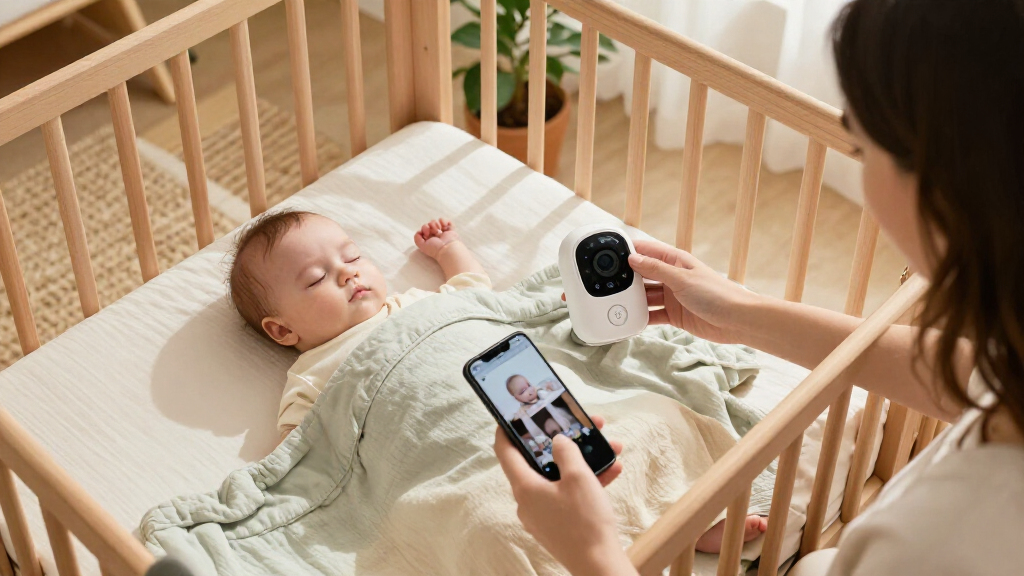
A baby monitor with Wi-Fi connectivity links a camera or audio unit to a home network, then sends the feed to an app or parent screen. Some models let you view the nursery only while your phone is on the home network; others support remote viewing over the internet, so you can check from a neighbor’s kitchen or a late shift across town. The product listing should say which kind of access it offers.
That difference matters when the network gets flaky. A camera may connect to your router but still rely on the internet or a cloud service to deliver video to your phone. A dual-mode model might add a dedicated parent unit that streams locally, but you need to check its manual to learn what still works if internet service, Wi-Fi, or household power fails.
Say you have stepped onto the back porch while a grandparent watches the baby. If the monitor works only through your phone, an incoming call or a weak signal could leave you fumbling with the app. If you expect to check in while traveling, ask whether the camera streams remotely, whether the app needs an account, and whether another caregiver can use a separate login.
Try to verify the specific failure cases before you buy: internet outage, router outage, and phone without service are not the same problem. A product that works locally through a parent unit may help with one while remote access still depends on the other. Treat the manufacturer’s current manual and support page as the final word, because features can change with software updates.
Popular right now

KitchenAid Classic Series 4.5-Quart Tilt-Head Stand Mixer, Onyx Black

Ninja Foodi Smart 6-in-1 Indoor Grill and Air Fryer, 4 qt, FG551

Breville Barista Express Espresso Machine, Black Truffle
As an affiliate, we earn on qualifying purchases.
Use alerts as a nudge to check, not as a health verdict
Sound and movement alerts can tell you that a camera picked up a noise or activity, but they cannot reliably tell you that your baby is breathing normally or needs medical care. An alert is a prompt to check the room, not a diagnosis. Consumer camera features should not replace safe-sleep practices or advice from your pediatrician.
Alert settings can help you avoid staring at a live feed all evening. For example, you might set a sound alert so a soft grunt does not wake you, while a louder cry prompts a phone notification. But a television through the wall, a dog shaking its collar, or a fan can trigger false alarms; a closed door or quiet cry can be missed. Your room and the monitor’s microphone both affect what it detects.
Some newer models advertise person detection, sleep summaries, temperature readings, or breathing-related alerts. Those features differ by model, and marketing language does not establish accuracy. Before relying on one, read the manufacturer’s explanation of what it measures, what it cannot detect, and how the alert behaves if the network goes down.
Use alerts to make routine caregiving easier, not to replace your own judgment. If an alert worries you, check your baby directly and follow your clinician’s guidance for health concerns. A camera can show you a useful view of the crib; it cannot examine your child or guarantee that nothing needs attention.
Compare the parts that matter more than a big resolution number
Video resolution alone does not tell you whether a monitor will be useful at night. Microphone clarity, low-light performance, connection stability, app lag, and the camera’s position all shape what you can actually see and hear. If you cannot make out a cry over a noisy audio feed, a sharper picture will not solve the problem.
Imagine checking the nursery while dinner simmers on the stove. A camera with crisp daytime video but choppy night vision may leave you squinting at a dark screen. Another model with a less impressive resolution but clear audio and steady low-light video may make it easier to tell whether your baby is stirring. A crowded home network, several video calls, or a router at the far end of the house can affect streaming, too.
Use a side-by-side comparison before you choose. Confirm the exact features for the model and app version you would buy; specifications and subscriptions change over time.
| What to compare | Why it matters | Practical check |
|---|---|---|
| Low-light video | Night viewing is often the main use. | Look for sample footage or a clear night-vision description. |
| Audio and lag | A delayed or muddy feed can make a check-in frustrating. | Test the microphone, speaker, and stream if a return window allows. |
| Local viewing | A parent unit may offer another way to watch. | Read what works without internet or Wi-Fi. |
| Storage and alerts | Recording and advanced detection may have different costs. | Check plan limits and features that work without a subscription. |
When you read reviews, favor details about real use—such as whether a connection drops through two walls—over a resolution figure on its own. A monitor is a tool in a lived-in home, with doors closing, phones ringing, and routers shared by everything from laptops to smart speakers.
Protect the camera account with a few practical habits
Unique credentials, available two-factor authentication, updated software, and limited sharing can reduce the risk of someone else accessing a connected camera. No internet-connected device is risk-free, so the goal is to make access harder to guess and easier for you to control. Start with a password that you do not use for email, shopping, or another device.
Set aside a few minutes during setup to check the app’s account page. Turn on two-factor authentication if the brand offers it, review which phones or users can view the feed, and remove access when a caregiver no longer needs it. If your partner, sitter, or grandparent uses the app, give each person their own account when supported instead of passing around one shared password.
Find out where recordings go: a memory card or device, a cloud account, or both. Check how long clips stay, whether you can delete them, and whether recording or longer video history costs extra. “No subscription” does not automatically mean “no data collection,” so read the brand’s privacy information for details on video, account, and usage data.
Keep the app and camera firmware updated, and avoid leaving default login details in place. For example, if you lend the camera to a relative later, reset it using the manufacturer’s instructions before it joins another home. Small routines—like checking the shared-user list every few months—make it less likely that an old phone or an expired babysitter login still has access.
Check the total cost and compatibility before you buy
Some Wi-Fi monitors work without a subscription, while cloud recording, longer video history, or selected advanced alerts may require a paid plan. The camera’s sticker price does not always show what you will spend to keep the features you want. Read the current plan details and confirm what continues to work if you never subscribe or cancel later.
Picture your family using live video every evening but rarely replaying clips. In that case, a monthly charge for video history might offer little value. A different family might want recordings to review an event; for them, storage limits, retention, and the option to download or delete clips could matter more than a discount on the camera.
Check the practical details while you compare: phone compatibility, account requirements, how many caregivers can share access, and whether the camera needs a strong signal where the crib sits. Ask whether the monitor includes a battery backup or separate parent unit, and what that backup powers. Do not assume that a camera’s battery will keep the router or internet connection alive during an outage.
Prices, app features, and subscription terms can change. Before ordering, confirm current information with the manufacturer, then check the retailer’s return policy in case the feed stutters in your home. That gives you a chance to test the camera on your own network, with the doors shut and the devices your family normally uses online.
Mount the monitor where it can see the crib without entering the sleep space
Place the camera according to its instructions, with the device and cords well away from your baby and sleep space. A monitor should help you see or hear from a safe distance; it should not add loose equipment within reach. Follow the product’s mounting directions and safe-sleep guidance for your baby’s room.
For example, a parent might clamp a camera to a crib rail because it gives a close-up view, then discover that the mounting arm can shift when the baby grabs it. A wall mount or another manufacturer-approved position may offer a stable view without putting the camera or cord near the crib. Check the hardware and cord route carefully, especially as your baby begins to roll, reach, and pull up.
Think through the whole setup before tightening a screw: Can the camera see the area you want? Does the cable hang where a child could reach it later? Is the mount secure on that surface? The power-cord length and outlet location can shape the safest placement, so use the included hardware and product guidance rather than stretching a cord across the room.
Choose products and installation methods suited to your child’s age and stage. Before buying or using a child product, check current CPSC recall notices for the item or manufacturer, and follow the manufacturer’s age and mounting guidance. As your baby grows, revisit the setup; a position that seemed safely out of reach for a newborn may no longer suit a curious toddler.
Frequently Asked Questions
Can I watch the camera when I’m away from home?
Only if the model supports remote viewing over the internet. The camera needs a working home connection, and your phone or tablet needs suitable internet access. Check the manufacturer’s current instructions for account and app requirements.
Will a Wi-Fi baby monitor work if my internet goes down?
It depends on the model. Some monitors offer a dedicated parent unit or local viewing option, while others rely on the network or cloud service. Check the manual for behavior during an internet outage, a Wi-Fi outage, and a power outage.
Are Wi-Fi baby monitors secure?
You can reduce access risks with good account habits, but no connected device is risk-free. Use a unique password, enable two-factor authentication when available, install software updates, and give camera access only to trusted caregivers. Review shared users periodically.
Do I need to pay for a subscription?
Not always for live viewing. Some brands charge for cloud storage, longer video history, or selected advanced features. Check the current plan terms and what still works without a subscription.
Can a camera alert me if my baby stops breathing?
A standard camera or movement alert cannot reliably establish that a baby is breathing normally. Do not use consumer monitor alerts as a substitute for safe-sleep practices or medical advice. Ask your pediatrician about health concerns.
Does higher video resolution mean a better monitor?
No, resolution is only one part of the experience. Clear audio, night vision, a steady connection, useful app controls, and alert behavior also matter. Consider how the monitor performs in the room and on the network where you plan to use it.
Can more than one caregiver use the app?
Many systems support shared access, but the number of users and permission controls vary. Check the model’s current account settings and invite only caregivers who need access. Remove users when they no longer need it.
Conclusion
Choose a monitor around the moments when you will use it: checking the nursery from bed, sharing access with a caregiver, or viewing the feed while away. Confirm the outage behavior, privacy settings, ongoing costs, and safe mounting instructions for the exact model you are considering.
The best setup is one you can understand at 3 a.m.—a steady feed, a sensible backup, and no camera cord near the crib. Keep the monitor in its lane: useful for checking in, never a substitute for safe sleep or pediatric guidance.