
TL;DR

Turn the school run and nap time into listening time
- Thousands of audiobooks, podcasts and originals
- Listen on your phone, tablet or Echo — also offline
- Cancel anytime
Adding a second camera enhances your baby monitor system by covering multiple rooms. Modern setups are scalable, often wireless, and increasingly smart—making monitoring easier and more reliable.
Imagine this: it’s 3 a.m., and your baby’s cry echoes from the nursery. You want to check on them without wandering into the dark or risking waking them. A multi-room monitor setup with multiple cameras can give you that peace of mind. But how do you add a second camera effectively? Is it complicated? In this guide, I’ll walk you through the essentials—what to look for, how to set it up, and tips to make it work seamlessly.
Whether you’re expanding your current system or starting fresh, understanding the ins and outs of multi-room baby monitors can save you time, money, and stress. Let’s explore how to build a flexible, reliable setup that keeps watch over your little one—and all the other important spots around your home.
Choose cameras that are compatible with your current system, whether wired or wireless.
Place cameras strategically—think about lighting, angles, and what you want to monitor most.
Use multi-view monitors or apps to keep an eye on several rooms without fuss.
Modern systems are expandable; plan for future growth from the start.
Security matters: update firmware, use strong passwords, and keep privacy front and center.
Adding a Second Camera: Multi-Room Monitor Setups Explained
TL;DR: Adding a second camera expands your baby monitor from one-room coverage into a flexible home watch system. The best setups are compatible, thoughtfully placed, secure, and scalable enough to grow from two rooms to a full multi-camera network.
Many modern baby monitor ecosystems can support multiple cameras, with some expanding up to 8 to 12 units.
Basic cameras often start around $50-$100, while AI-enabled models can cost several hundred dollars each.
One nursery view is useful. Two or more views create a real safety net across sleep, play, and transition spaces.
Cameras supported by many consumer security and baby monitor systems.
Confirm brand, app, monitor, and Wi-Fi compatibility before buying.
Nursery plus playroom, hallway, living room, or another high-use space.
Strong passwords, firmware updates, and privacy-aware placement.
Multiple rooms, one calmer way to check in.
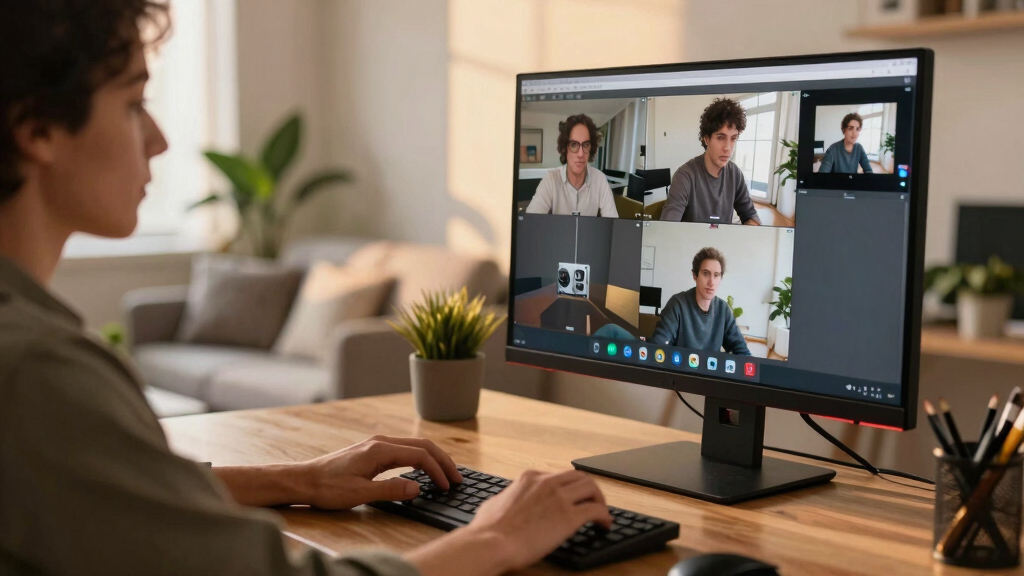
A multi-room baby monitor setup lets you watch several spaces from one monitor or app. That means the nursery, playroom, living room, and hallway can stay visible without walking through the house at 3 a.m.
See the rooms that matter most
Use the first camera for sleep, then place the second where movement happens: play areas, entry points, or a sibling’s room.
Switch less, respond faster
Multi-view screens and apps reduce the back-and-forth, helping you spot cries, movement, or quiet trouble sooner.
Build for future rooms
Choose a system with a clear expansion path so another camera later does not mean replacing everything.
How to add the second camera without making it fussy.
Most wireless systems are designed for quick expansion, but the details still matter. Compatibility, placement, and a test run prevent the common problems: dead zones, poor angles, and dropped feeds.
Check compatibility
Verify the second camera supports your existing brand, app, parent monitor, Wi-Fi band, firmware, or hub.
Place it strategically
Think about lighting, blind spots, outlet access, night vision range, and whether two-way audio is useful there.
Connect and test
Name the camera, set viewing preferences, check the image at night, then confirm the feed stays stable.
Wireless, wired, smart, or IP: what changes?
The right second camera depends on your home layout and your tolerance for setup work. Wireless wins on convenience; wired wins on stability; smart models add alerts and automation.
| Camera Type | Best For | Setup Effort | Reliability | Smart Features | Tradeoff |
|---|---|---|---|---|---|
| Wireless Camera | Quick second-room installs | ✓ Easy | ~ Depends on Wi-Fi | ✓ Often app-based | May face interference or weak signal in distant rooms. |
| Wired Camera | Constant monitoring | ✗ More involved | ✓ Very stable | ~ Varies | Less flexible placement because cables and routing matter. |
| Smart Camera | Alerts, zones, automation | ✓ Usually guided | ~ Network-dependent | ✓ AI motion, audio, zones | Higher cost and more privacy settings to manage. |
| IP / PoE Camera | Expandable networks | ~ Moderate | ✓ Strong | ~ Model-specific | Great for stability, but may need networking comfort. |
One screen or several? Match the view to the routine.
Multi-view monitors make checking several rooms simple, while dedicated screens keep important rooms visible all the time. The best choice is the one you can read quickly when tired.
Setup tradeoff score
A practical read of common second-camera options, balancing installation speed with long-term dependability.
Clarity vs. complexity
Split-screen viewing is compact, but too many feeds can make each image harder to read. Add cameras with the monitor size in mind.
The second camera checklist that prevents regret.
Adding a camera is simple when the system is ready for it. The most reliable setup comes from checking the ecosystem first, then tuning the room placement and privacy controls.
Match the ecosystem
Use a camera listed as compatible with your current app, monitor, hub, or DVR/NVR.
Check Wi-Fi capacity
Multiple video streams can strain weak networks, especially with 4K or always-on recording.
Plan the viewing mode
Decide whether you need split-screen tiles, camera cycling, alerts, or dedicated screens in separate rooms.
Security is part of the setup, not an afterthought.
Use strong unique passwords, update firmware, enable encryption where available, and avoid pointing cameras at private areas. For extra control, consider a separate network for smart home devices.
Privacy-aware placement matters too: monitor the crib, doorway, or play zone without capturing spaces where privacy is expected.
From one camera to a reliable multi-room system.
Every strong setup follows the same chain: compatible hardware, smart placement, clear viewing, stable connectivity, and active privacy care.
What Does a Multi-Room Baby Monitor Setup Really Do for You?
Multi-room setups let you see multiple areas from a single device or app. Think of it like having several eyes around your house—one in the nursery, another in the living room, maybe even one in the kitchen. This way, you don’t need to be in the same room as your baby to check on them.
For example, if you’ve got a toddler playing in the living room and a newborn sleeping in the nursery, a multi-camera system lets you keep tabs on both simultaneously. It’s especially handy when you want peace of mind without constantly running back and forth.
Beyond convenience, this setup reduces your stress by providing real-time updates on different parts of your home. It also helps you quickly respond to unexpected situations—like a toddler wandering or a spill—before they become bigger issues. The key is understanding that multi-room monitoring is about creating a comprehensive safety net, but it also requires thoughtful placement and reliable tech to truly be effective.
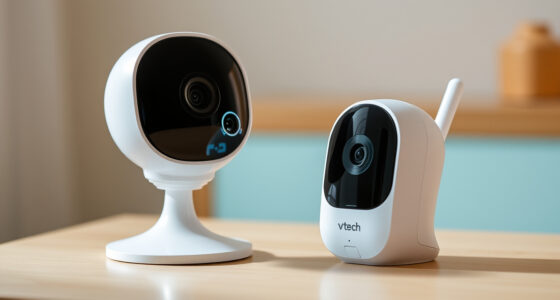
wireless baby monitor with multiple cameras
As an affiliate, we earn on qualifying purchases.
As an affiliate, we earn on qualifying purchases.
Choosing the Right Second Camera — What Really Matters
Adding a second camera isn’t just about buying another gadget. It’s about compatibility, placement, and features. Your new camera should work smoothly with your existing system. Check if it’s Wi-Fi or wired, and whether it supports the same app or platform.
Placement is key. For instance, if your first camera covers the nursery, consider putting the second in the living room or hallway—places where you often worry about your child’s safety or activity. Think about lighting, angles, and whether you want two-way audio or night vision.
However, it’s important to recognize that not all cameras are created equal. Some may have limited viewing angles, lower resolution, or inconsistent connectivity, which can create gaps in coverage. Choosing a camera with a wide-angle lens or higher resolution might cost more upfront but can significantly improve your ability to monitor your child accurately. Also, consider the tradeoff between wired and wireless options: wired cameras tend to be more stable but less flexible in placement, while wireless models offer easier installation but may face interference. Making the right choice depends on your home’s layout and your priorities—whether it’s picture clarity, ease of setup, or ongoing reliability.
As an affiliate, we earn on qualifying purchases.
How to Add a Second Camera in 3 Simple Steps
- Check Compatibility: Make sure the new camera supports your system (Wi-Fi, app, brand). Most brands list compatible models on their website.
- Position It Strategically: Think about where you want the camera. Entry points, play areas, or the nursery are common spots.
- Configure and Connect: Follow the app instructions—connect to Wi-Fi, name the camera, and set your viewing preferences. Test the view before leaving it alone.
Remember, the ease of adding a second camera depends on your system’s flexibility. Some systems allow seamless addition with minimal setup, while others may require firmware updates or app configurations. Ensuring you follow the manufacturer’s instructions carefully can prevent common issues like connectivity drops or poor image quality. Additionally, doing a quick test after installation helps you confirm the camera’s view and functionality, avoiding surprises when you need it most. This step is crucial because a well-placed camera that’s easy to access and view can make all the difference in effective monitoring.
As an affiliate, we earn on qualifying purchases.
Monitoring Multiple Cameras — Single or Multiple Screens?
Modern systems support viewing several cameras on one screen, splitting the view into quadrants or tiles. For example, your monitor might display the nursery, playroom, and front door at once.
If you prefer, you can also use multiple monitors in different rooms or a phone app that lets you toggle between feeds. It’s like having different windows into your home—each with its own view, but all connected.
Choosing between a multi-view setup and multiple screens depends on your lifestyle and space. Multi-view monitors are convenient and reduce clutter, but they can sometimes compromise on image clarity if the split view is too busy. Multiple screens provide dedicated views but require more hardware and setup. The most practical approach balances ease of access with clarity—consider how often you need to switch views and whether quick, at-a-glance monitoring suffices or if you need detailed, continuous views of each area.
As an affiliate, we earn on qualifying purchases.
Will My System Scale Up as My Family Grows?
Absolutely. Most modern baby monitor systems are built to grow. You can add more cameras later—often up to 8 or 12—without replacing the entire setup.
For example, if you start with just the nursery, but later want to keep an eye on the backyard or the toddler’s room, a scalable system makes it easy. Just purchase compatible cameras and connect them through the app.
This flexibility means your investment can adapt as your family’s needs change, without starting from scratch every time.
However, it’s important to consider that some systems have limits on how many cameras they support, and adding too many can impact network performance or system stability. Ensuring your Wi-Fi network can handle multiple streams is essential to maintain smooth operation. Additionally, some systems may require more complex configuration or higher-tier plans to support extensive camera networks. Planning ahead for future expansion by choosing a system with a clear upgrade path can save you headaches and extra costs down the line.
Latest Trends: Smarter, Clearer, and More Connected
New tech keeps making multi-room baby monitors better. 4K cameras deliver sharp images, even in low light, so you see every detail—like tiny fingers or creased pajamas.
AI features like motion alerts, facial recognition, and activity zones mean your system can notify you about specific events—saving you from constant checking.
Wireless options and Power-over-Ethernet (PoE) simplify installation, reducing clutter and making it easier to add cameras anywhere. Plus, integration with smart home systems lets you control everything through Alexa or Google Assistant.
What You Need to Know Before Buying Your Second Camera
Before purchasing, consider these key facts:
- Number of Cameras: Support for 4-12 cameras is common, depending on the system.
- Connectivity: Wi-Fi offers flexibility but may face interference; wired options are more stable.
- Cost: Basic cameras start around $50, while advanced AI models can go over $200 each.
- Privacy & Security: Use strong passwords, keep firmware updated, and avoid placing cameras where neighbors or the public can see.
Your Top Questions — Answered
How do I match a second camera to my current system? Check the brand and model for compatibility. Many systems support adding cameras from the same brand or compatible third-party options.
Can I view all my cameras on one device? Yes, most systems support multi-view on a single monitor or app, letting you see several feeds at once.
Is installation hard? Wireless cameras are quick to set up; wired cameras may need a bit of technical know-how or professional help.
How do I keep my system secure? Use strong passwords, enable two-factor authentication if available, and keep firmware updated to patch vulnerabilities.
Where should I place my cameras? Focus on high-traffic or vulnerable areas—entry points, nursery, play areas—and avoid places with poor lighting or direct sunlight.
Conclusion
A well-planned multi-room baby monitor setup transforms your peace of mind. It’s about smart placement, compatible tech, and future-proofing your investment. As your family grows, your system can grow with you—making every corner of your home safer and more connected.
So, take a moment to review your current setup, think about where you want that second eye, and get ready for a more confident, relaxed parenting journey. The right system isn’t just a gadget—it’s your new partner in peace of mind.
Cold & flu season Picks
humidifiers
As an affiliate, we earn on qualifying purchases.