
TL;DR

Turn the school run and nap time into listening time
- Thousands of audiobooks, podcasts and originals
- Listen on your phone, tablet or Echo — also offline
- Cancel anytime
WiFi baby monitors stream video over your internet, which can slow down your connection if bandwidth is limited. Most home plans handle this easily, but managing video quality and router settings can keep your internet running smoothly.
Ever noticed your WiFi slowing down when you’re watching a streaming show or working from home? It’s not just in your head. Your baby monitor, especially a WiFi-enabled one, could be the culprit. It’s a common concern among parents trying to juggle baby monitoring and online life, but the truth isn’t as simple as it seems.
In this guide, you’ll learn exactly how WiFi baby monitors use bandwidth, what that means for your internet speed, and practical steps to keep everything running smoothly. Think of it as a friendly tech chat — no confusing jargon, just real-world tips to help you stay connected and stress-free.
A WiFi baby monitor can use 3-5 Mbps of bandwidth, which matters on slow or limited plans.
Most home internet plans over 50 Mbps handle a baby monitor without noticeable slowdown.
Lowering video quality and enabling QoS can keep your internet fast during busy times.
Wired monitors avoid bandwidth issues altogether but sacrifice remote flexibility.
Upgrading your internet plan is a simple way to future-proof your household against multiple high-demand devices.
Do WiFi Baby Monitors Slow Your Internet?
The straight answer: they can—but usually only when bandwidth is limited or heavily shared. A monitor continuously moves video and audio through your network, competing with calls, streaming, gaming and downloads for the same finite capacity.
Typical HD monitor
Enough to matter on a slow plan, but manageable on most modern connections.
Comfortable baseline
Most households above this speed will not notice one HD monitor.
Resolution win
One parent cut usage dramatically by switching the monitor to 360p.
Your connection is a shared pipe, not a private lane.
Every active device takes a portion of the available bandwidth. The monitor is rarely a problem by itself; the slowdown appears when its stream combines with other demanding activity.
Capacity minus demand equals headroom.
When headroom approaches zero, websites feel sluggish, video buffers and calls may stutter. The monitor has not broken the internet—the household has simply filled the available pipe.
Sharper video consumes a larger slice of your network.
The bars compare typical bandwidth requirements on a 20 Mbps scale. Actual use varies by compression, frame rate and how often the camera uploads video.
An HD monitor can occupy one quarter of a 20 Mbps plan.
On a 100 Mbps plan, that same 5 Mbps stream uses only 5%—which is why the identical monitor can feel disruptive in one home and invisible in another.
Plan speed changes the experience more than the camera does.
This comparison assumes one monitor using up to 5 Mbps. Concurrent video calls, cloud backups, gaming and streaming reduce the remaining headroom further.
| Internet plan | Monitor share | Likely experience | Best response |
|---|---|---|---|
| 10 Mbps | !Up to 50% | Buffering and call lag are likely during busy periods. | Lower resolution, schedule downloads or upgrade. |
| 20 Mbps | ~Up to 25% | Usually workable, but simultaneous HD activity may compete. | Enable QoS and use SD during peak hours. |
| 50 Mbps | ✓Up to 10% | Most homes should see little or no noticeable slowdown. | Keep firmware current and monitor device load. |
| 100 Mbps | ✓Up to 5% | The impact is normally negligible, even with several devices. | Optimize router placement for stability rather than speed. |
Where the monitor’s video goes—and where congestion begins.
A weak WiFi link and a limited internet plan can produce similar symptoms. Follow the chain to identify whether the problem is wireless coverage, router capacity or the broadband connection itself.
Camera captures
Video and audio are encoded into a continuous stream.
WiFi carries
The signal crosses the home wireless network.
Router directs
Traffic is balanced alongside every other device.
Internet relays
Remote viewing may send the stream through cloud services.
Parent watches
The app receives the live feed at home or away.
Keep the monitor online without sacrificing the rest of the house.
Start with the free adjustments. A few minutes in the monitor app or router settings can create enough headroom to avoid an unnecessary plan upgrade.
Lower the resolution
Switch HD to SD or 360p during busy periods. This is often the fastest and most effective bandwidth reduction.
Turn on router QoS
Quality of Service can prioritize work calls and essential traffic so the monitor does not dominate a crowded connection.
Use Ethernet
If supported, a wired connection gives the camera a stable route and reduces competition across the wireless network.
Move heavy tasks
Pause large downloads, backups and multiple HD streams when calls or other critical activities need priority.
A real-world resolution reset
Switching one monitor to 360p reduced its bandwidth use by nearly 70%, leaving enough room for smooth Netflix streaming during peak hours.
Add more headroom
If several high-demand devices run every day, a faster plan can future-proof the household and reduce recurring congestion.
The monitor matters most when your network has no room to breathe.
A standard HD feed is a modest load on fast broadband and a major load on a slow connection. Match video quality to available capacity, prioritize critical traffic and consider wired hardware when remote access is not essential.
You value remote flexibility.
WiFi monitors make it easy to check the camera from a phone anywhere. They are a strong fit when your plan has 50 Mbps or more and your router handles several devices well.
You value predictable stability.
Wired monitors avoid WiFi competition and can provide a steady local connection. The tradeoff is reduced remote flexibility and potentially more installation effort.
What Do WiFi Baby Monitors Do to Your Internet? Here’s the Straight Answer
WiFi baby monitors transmit video and audio over your home network, which uses your internet bandwidth. When they stream HD video, they can gobble up 3-5 Mbps, sometimes more. This is significant because it directly competes with other online activities like streaming, gaming, or video conferencing. When bandwidth is limited, this competition can cause buffering, lag, or slow load times, impacting your overall internet experience.
Understanding why this matters involves recognizing that your internet bandwidth is a finite resource. If your plan offers, say, 10 Mbps, dedicating 5 Mbps to a baby monitor leaves only 5 Mbps for everything else. This tradeoff can lead to frustrating delays or interruptions, especially during peak usage times or when multiple devices are active. Therefore, knowing how much bandwidth your monitor consumes can help you make informed choices about device placement, video quality settings, and network management to maintain a smooth online environment for all your household needs.
As an affiliate, we earn on qualifying purchases.
How Much Bandwidth Do Baby Monitors Really Use? Numbers You Can Trust
| Video Quality | Bandwidth Use |
|---|---|
| Standard Definition (SD) | 1-2 Mbps |
| High Definition (HD) | 3-5 Mbps |
| 4K or Ultra HD | 15+ Mbps |
Imagine a typical household internet plan of 50 Mbps. If your streaming devices, work-from-home applications, and your baby monitor are all running simultaneously, these numbers can help you gauge whether your network can handle the load. For instance, a 5 Mbps HD stream consumes a significant chunk of your total bandwidth, which might cause slowdowns if your plan is limited or several devices are active. Conversely, on a faster plan, this is usually manageable, but it underscores the importance of balancing device usage and video quality. Lowering video resolution during busy periods can free up bandwidth, reducing the risk of lag or buffering across all devices and ensuring your household maintains a stable connection for everything that depends on it.
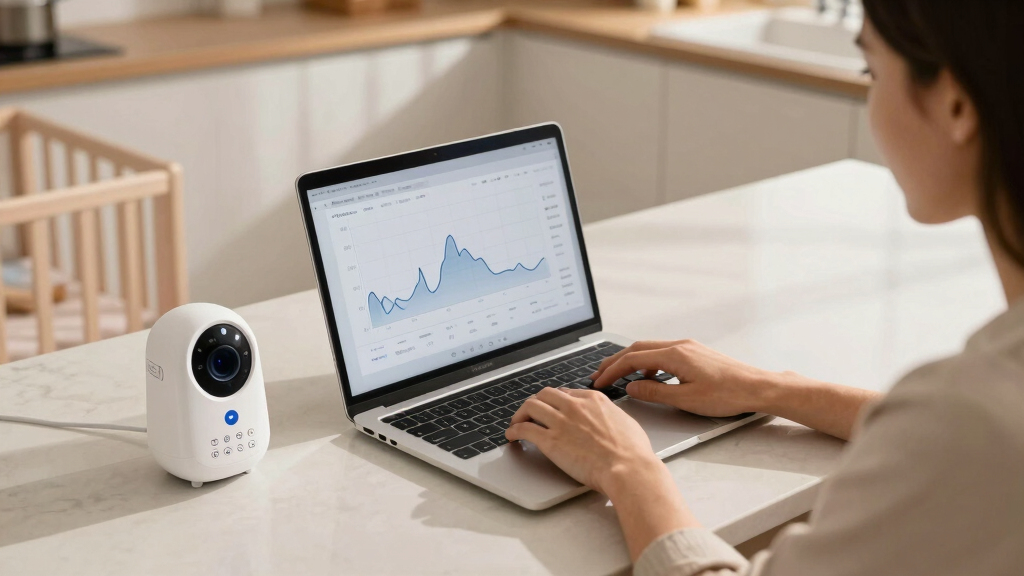
WiFi baby monitor with adjustable video quality
As an affiliate, we earn on qualifying purchases.
As an affiliate, we earn on qualifying purchases.
Can My Internet Really Slow Down Because of a Baby Monitor? Here’s When It Happens
Yes, your internet can slow down if your bandwidth is limited or heavily shared. For example, if you have a 10 Mbps plan and your baby monitor hogs 4 Mbps, that leaves less for everything else. During busy times — like a family movie night or working from home — you might notice buffering or lag. This is because the total available bandwidth is being divided among multiple devices, and when one device consumes a large portion, others suffer.
The implications are significant: in households with limited plans, even a single high-quality monitor can cause noticeable slowdowns, affecting video calls, online gaming, or streaming. On the other hand, in homes with faster internet (100 Mbps or more), the impact is often negligible, but awareness of your total bandwidth and device load remains crucial. The key is understanding your network’s capacity and how your devices share it, so you can optimize settings or upgrade plans to prevent these issues.
As an affiliate, we earn on qualifying purchases.
How to Keep Your Internet Fast While Using a WiFi Baby Monitor
- Lower the video quality on your monitor — switch from HD to SD if possible. This simple adjustment reduces bandwidth consumption, which can significantly improve overall network performance, especially during peak times or when multiple devices are connected.
- Prioritize critical traffic with Quality of Service (QoS) settings on your router. By giving priority to essential activities like work meetings or streaming, you ensure your baby monitor doesn’t monopolize bandwidth when it’s most needed.
- Use an Ethernet connection for the monitor if it supports wired setup. Wired connections are more stable and don’t compete for WiFi bandwidth, providing a reliable stream without affecting other wireless devices.
- Limit other high-bandwidth activities during peak times. Pausing large downloads, online gaming, or streaming can free up bandwidth for your monitor and essential services, reducing lag and buffering.
- Upgrade your internet plan if you regularly run multiple high-demand devices. A plan with higher bandwidth capacity provides more headroom, decreasing the likelihood of slowdowns and improving overall network performance.
For example, a parent found that switching the monitor to 360p reduced bandwidth use by nearly 70%, which kept their Netflix streaming smooth even during peak hours. This highlights how simple adjustments can make a noticeable difference in maintaining a stable, fast internet connection.
As an affiliate, we earn on qualifying purchases.
Frequently Asked Questions
Will my WiFi baby monitor slow down my internet if I have a limited plan?
It can, especially if your plan is under 20 Mbps. In such cases, high-quality video streams may compete with other online activities, causing slowdowns.How can I prevent my baby monitor from affecting my internet speed?
Use your router’s QoS feature to prioritize essential traffic, reduce the monitor’s video quality, or connect the monitor via Ethernet if possible.Does upgrading my internet plan solve bandwidth issues with baby monitors?
Yes, higher bandwidth plans provide more headroom for multiple devices and high-quality streams, reducing the chance of slowdowns.Are wired monitors better for managing bandwidth?
Wired monitors don’t use WiFi, so they won’t impact your internet speed. They’re a good choice if you want a reliable, steady connection.What other tips help keep my WiFi fast with smart devices running?
Update device firmware, enable QoS, limit high-bandwidth activities during peak times, and consider upgrading your internet plan for more capacity.Conclusion
Understanding how your WiFi baby monitor uses bandwidth helps you avoid slowdowns and keeps your home connected. Managing video quality, router settings, and plan speed can make a big difference. Remember, a faster, smarter network means fewer worries — and more peace of mind at 3 a.m.
Think of your internet as the nervous system of your home. Keep it well-tuned, and everything — from baby monitoring to binge-watching — flows smoothly.
Halloween Picks
halloween
As an affiliate, we earn on qualifying purchases.